Table of Contents▼
In This Article
- What You'll Need
- Step 1: Power the Controller
- Step 2: Install the App
- Step 3: Connect Your Device
- Connecting to iPhone (WeDJ)
- Connecting to iPad (djay Pro AI)
- Connecting to Laptop (Rekordbox)
- Step 4: Connect Speakers and Headphones
- How the Splitter Cable Works
- Connection by Device Type
- Step 5: Enable Split Output
- Split Output for iPhone/Android (WeDJ)
- Split Output for iPad (djay Pro AI)
- Split Output for Laptop (Rekordbox)
- Full Setup Recap
- Conclusion
Getting started with the Pioneer DDJ-200 is simple once you know the steps. This guide covers:
- Power: USB power bank or phone charger (5V)
- Connection: Bluetooth for mobile devices, USB for laptops
- Apps: WeDJ (iPhone/Android), djay Pro AI (iPad), Rekordbox (laptop)
- Audio: Using the included splitter cable for headphones + speakers
- Split Output: The crucial setting that makes everything work
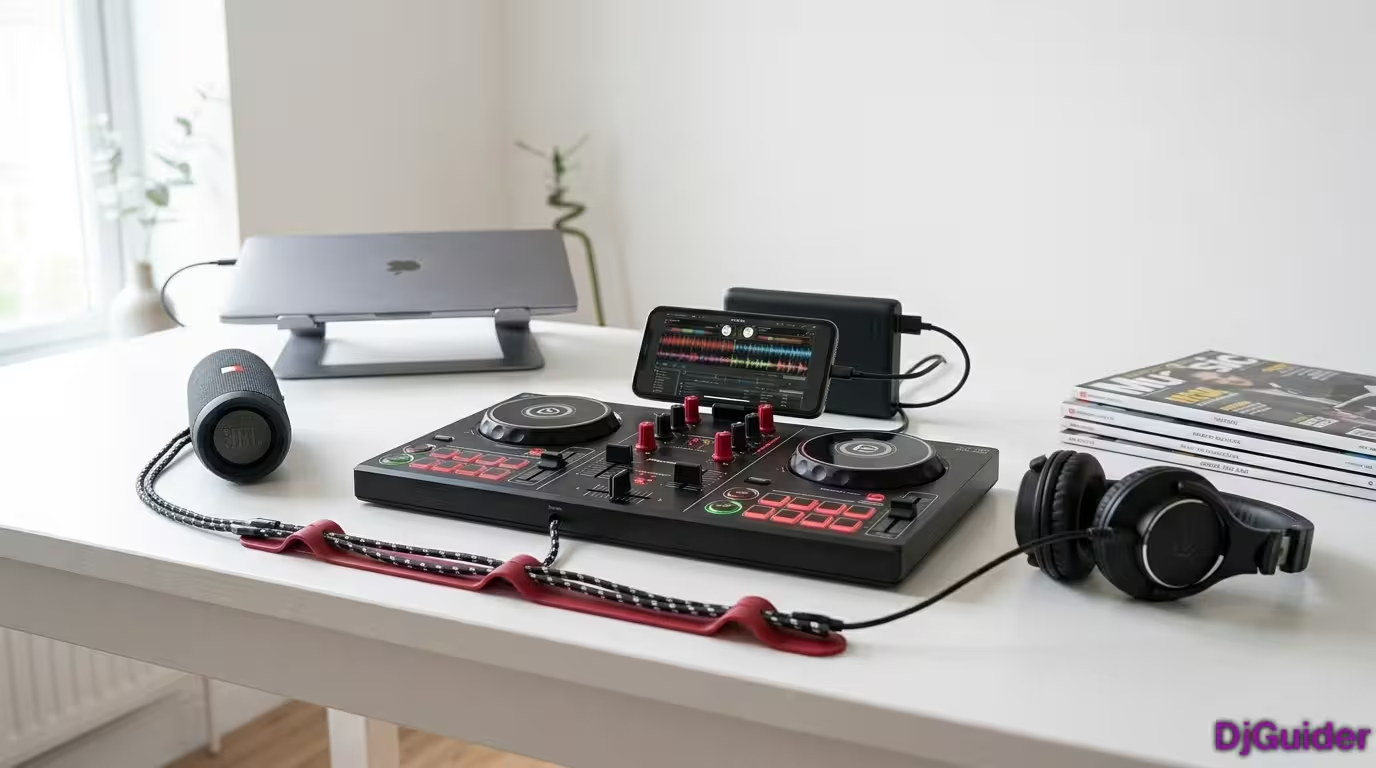
In this post, I'm going to show you how to get set up and play music from your mobile device of choice with your brand-new Pioneer DDJ-200.
This is a fantastic controller for those people looking to take their first steps into the world of DJing, and it's available to be used with a lot of different devices and applications, so it's very versatile.
Today I'm going to show you how to get set up on iPhone, Android, iPad, and also for laptop users.
In this beginner's guide, I'm going to be using:
- WeDJ application (iPhone/Android)
- djay Pro AI (iPad)
- Rekordbox (laptop)
What You'll Need
| Item | Purpose |
|---|---|
| DDJ-200 controller | The controller itself |
| USB cable | Supplied — for power and laptop connection |
| USB power source | Phone charger, power bank, or laptop USB port |
| Audio splitter cable | Supplied — connects headphones and speakers |
| Headphones | For cueing and monitoring |
| Speakers | For the main output |
| Device | iPhone, Android, iPad, or laptop |
Step 1: Power the Controller
If you're using a phone or iPad with the DDJ-200, you'll be connecting via Bluetooth, which means there's no physical connection between the deck and your device. So we need to get the controller powered on first.
Use the supplied USB cable. You can use any form of USB power to connect the DDJ-200 and get it turned on:
| Power Source | Works? |
|---|---|
| Phone charger (5V USB) | ✓ |
| Power bank / battery bank | ✓ |
| Laptop USB port | ✓ (also provides data) |
| Computer USB hub | ✓ |
A battery bank works great if you're out and about on the go. Personally, I like to use an old phone charger I have kicking about. Anything that's supplying 5 volts of USB power will work. Connect that to the controller and it will light up.
Step 2: Install the App
Make sure you have the latest version of the application installed on your device:
| Device | Application |
|---|---|
| iPhone | WeDJ (App Store) |
| Android | WeDJ (Google Play) |
| iPad | djay Pro AI (App Store) |
| Laptop | Rekordbox (rekordbox.com) |
Make sure you've got the most recent version installed before you start the connection process.
Step 3: Connect Your Device
Connecting to iPhone (WeDJ)
- Launch the WeDJ application
- Tap the settings cog in the upper right-hand corner
- Scroll down to the section that says "Connect DDJ-200"
- Tap it — on first use, you may be prompted to allow Bluetooth access
- Tap OK
- You'll see "DDJ-200" listed as "Not connected"
- Tap on "DDJ-200" — within a few seconds, you'll be connected
- You'll see a black animation screen saying "DDJ-200: You are connected"
Connecting to iPad (djay Pro AI)
- Launch the djay Pro AI application
- Tap the Algorithm logo at the center top of the screen
- This opens the menu bar — tap Settings (bottom right corner)
- Scroll down to MIDI Devices
- Find Bluetooth MIDI Devices
- Tap it — you may need to accept Bluetooth support on first use
- You'll see "DDJ-200" listed as "Not connected"
- Tap on "DDJ-200" — it will change to "Connected"
- The controller will sweep through its lights — you are now connected
Connecting to Laptop (Rekordbox)
For laptop users, it's simpler:
- Grab the supplied USB cable
- Plug it into your computer's USB port
- Plug the other end into the DDJ-200
- Your computer will power the controller and connect to it through the same cable
- Launch Rekordbox — you're connected
Because we need the USB port on the back of the controller, it usually powers the controller too. Your computer can power it and connect to it using just a USB cable. No Bluetooth needed.
Step 4: Connect Speakers and Headphones
The back of the DDJ-200 has no ports on it whatsoever, and it's not even physically connected to our device if we're using a phone or iPad. Thankfully, Pioneer DJ included one of these cables in the box — this is called an audio splitter cable.
How the Splitter Cable Works
| Connector | Color | Purpose |
|---|---|---|
| Single end | — | Plugs into your device's headphone port |
| Output 1 | White | Headphones (cue/preview) |
| Output 2 | Black | Speakers (master output) |
Connection by Device Type
| Device | Adapter Needed? |
|---|---|
| iPhone with Lightning | Lightning to 3.5mm adapter |
| iPhone with USB-C | USB-C to 3.5mm adapter |
| Android with USB-C | USB-C to 3.5mm adapter |
| iPad (older) | Lightning to 3.5mm adapter |
| iPad Pro (USB-C) | USB-C to 3.5mm adapter |
| Most laptops | No adapter — direct connection |
iPhone users may need a Lightning adapter for their headphone port as many iPhones don't have this connection anymore. Android users, if your phone doesn't have a 3.5mm headphone port, you'll need a USB-C adapter. iPad users, check if your model has a headphone jack — iPad Pros are usually USB-C, older models use Lightning.
Step 5: Enable Split Output
Once everything is connected, we just need to make sure we've got one setting checked so that everything works as it should. This is called Split Output.
The split output enables the device to know to send:
- What should go to your speaker → the black connector
- What should go to your headphones → the white connector
Split Output for iPhone/Android (WeDJ)
- Tap the settings cog in the upper right-hand corner
- Tap the Audio option
- Ensure Split Output is checked ON
- Done — you're ready to start DJing
Split Output for iPad (djay Pro AI)
- Tap the Algorithm logo at the top to launch the menu bar
- Go to Settings (bottom right corner)
- Near the top, you'll see Split Output
- Make sure this is checked ON
- Press Done — you're ready to DJ
Split Output for Laptop (Rekordbox)
- Look for the Split Output icon in the top right-hand corner of your display
- Make sure this icon is turned ON (it should be glowing blue when activated)
That's all you need to do to get your headphones and speakers working properly. Without split output enabled, your device won't know which audio goes where, and you'll hear everything in both headphones and speakers.
Full Setup Recap
| Step | Action |
|---|---|
| 1 | Power the DDJ-200 via USB (charger or power bank) |
| 2 | Install the correct app for your device |
| 3 | Connect via Bluetooth (mobile) or USB (laptop) |
| 4 | Plug the audio splitter cable into your device |
| 5 | Connect headphones (white) and speakers (black) |
| 6 | Enable Split Output in your app settings |
| 7 | Load your music and start DJing! |
Conclusion
There we have it. It's as simple as that to get the DDJ-200 set up with your device and software of choice. We've got our controller set up properly, our headphones and speakers connected to the right ends of that cable, and we're using the correct settings for that cable too.
All that's left is for you to go ahead, download your favorite music, and start DJing!