
Table of Contents▼
In This Article
- Design and Build: What's Changed From the DDJ-400
- USB-C and Connectivity: The First Major Change
- Software Compatibility: Rekordbox, Serato, and Mobile
- How to Swap the Filter Knob for Other Sound Color Effects
- Hidden Parameter Controls and Release Effects in the Performance Pads
- Release Effects in Pad FX Mode
- Release Effects on the Beat Effects Channel
- How to Toggle Vinyl Mode On and Off on the FLX4
- Pad Effects: How to Add Pro-Sounding Effects to Any Mix
- Changing and Customising Pad Effects
- Combining Pad Effects for Even Better Sounds
- Beat Jump: How to Keep Every Mix Perfectly in Phrase
- How to Use Beat Jump With 32 Beats
- Smart CFX Combined With Beat Effects: Creating Unique Layered Sounds
- Smart Fader Settings and Hidden Options
- How to Access Track Separation (Stems) on the FLX4
- Streaming on TikTok, Twitch, and YouTube: A Huge Advantage
- What the DDJ-FLX4 Can't Do: Honest Limitations
- Is the DDJ-FLX4 Worth It?
- DDJ-FLX4: Complete Feature Summary
Design and Build: What's Changed From the DDJ-400
The DDJ-FLX4 maintains the standard club layout with two channels, the mixer section in the centre, and the players on either side.
Pioneer DJ has replaced the shiny black finish of the DDJ-400 with a sleek dark grey matte finish. The corners are now rounded, giving it a more modern look. The jog wheels also have this matte finish.
It feels like plastic to the touch — let's not pretend it's high-end gear — but it's a robust plastic that holds up well in a backpack.
- Finish — dark grey matte instead of shiny black
- Corners — rounded for a more modern look
- Jog Wheels — matte finish throughout
- Build — robust plastic, backpack-friendly
USB-C and Connectivity: The First Major Change
Finally, goodbye to USB-B printer cables — the FLX4 comes with USB-C and has two ports.
One port connects to your computer and the other powers the unit. Imagine you want to mix with a tablet or phone and the battery is running low — you plug a charger into this second port, and the FLX4 powers your device.
It's a brilliant detail for long sessions.
One port connects to your computer, the other powers the unit. Plug a charger into the second port and the FLX4 powers your tablet or phone — brilliant for long mobile sessions.
Software Compatibility: Rekordbox, Serato, and Mobile
The "FLX" in the name stands for flexible — this controller breaks down barriers and you're no longer tied to just Rekordbox.
You can now use Serato DJ Lite for free right out of the box. If you have a Pro license, it works too. Mobile integration is the future.
With Android, you connect the FLX4 and you're ready. It even works with Bluetooth. Imagine mixing at a beach party with no cables — just your phone and the controller. That versatility is what puts it ahead of the competition.
- Rekordbox — full support, Smart Fader works perfectly
- Serato DJ Lite — free, included out of the box
- Serato DJ Pro — works with a Pro license
- Android — plug and play, Bluetooth compatible
- iOS — works via rekordbox app
How to Swap the Filter Knob for Other Sound Color Effects
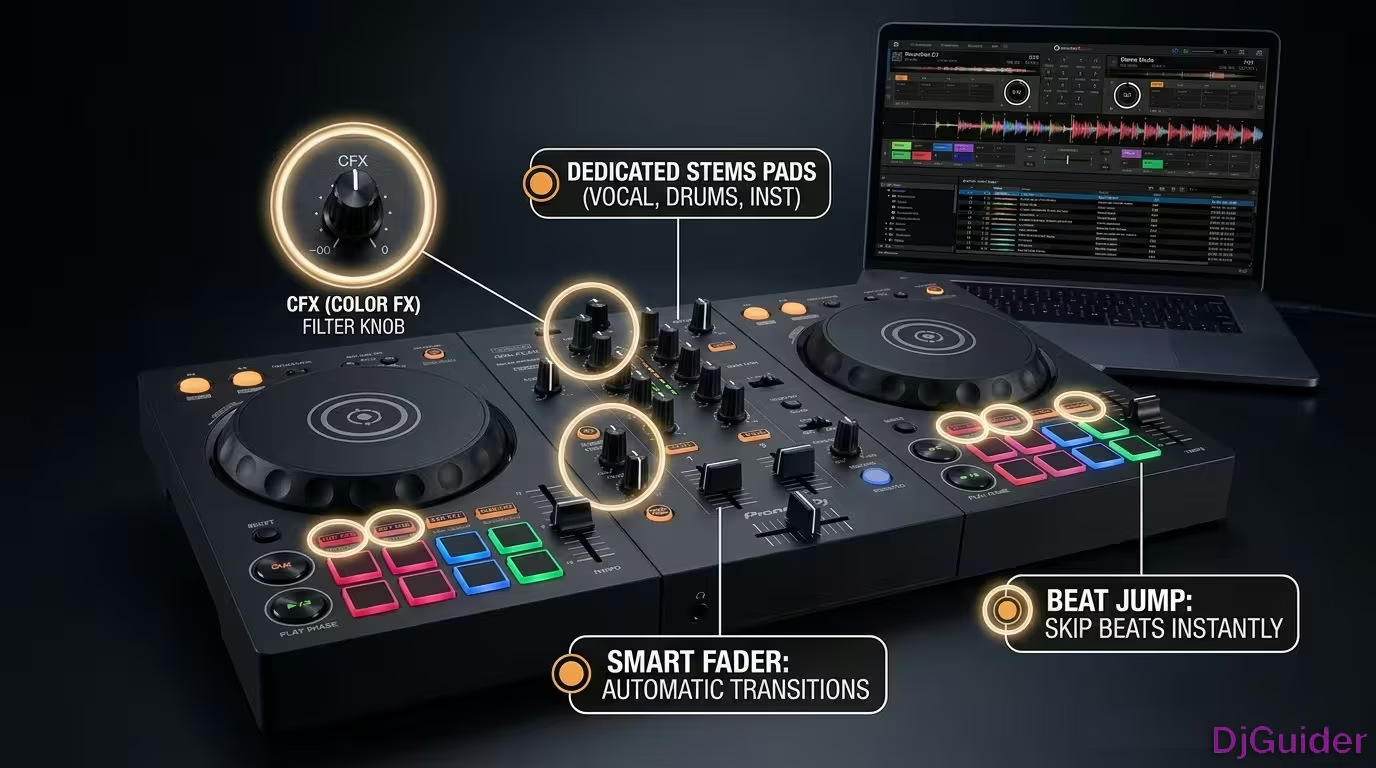
You can replace the FLX4's filter control with any sound color effect found on Pioneer DJ's DJM mixers.
Go to the Rekordbox gear icon, select View, scroll down, and find Effect Panel. Select Beat Effects and Sound Color Effects.
Then go to the Effects tab and find CFX — which stands for Color Effects. Set it to user preference and swap it out for any of the available options. This means you can practice with effects like Noise even if you don't have the expensive Pioneer DJ gear at home.
Select your chosen effect, turn it on, and have a listen. When you're done with it, remember to go back to default.
Go to Rekordbox gear icon > View > Effect Panel > Beat Effects and Sound Color Effects > Effects tab > CFX. Swap it for Noise or any other DJM color effect to practice pro gear features at home.
Hidden Parameter Controls and Release Effects in the Performance Pads
The FLX4 has hidden parameter controls tucked away inside the performance pad modes.
It's all good and well having various performance pads such as keyboard mode or beat jump mode, but we can only access the eight different options. In these modes there are different pages, as shown by the arrows on the screen.
If you hold Shift, you can use the bottom two pads to toggle between the different pages. This is especially useful in beat jump mode, and in keyboard mode you can go up and down the different pitches and access those different pages.
Release Effects in Pad FX Mode
There are two hidden effect features worth bringing your attention to. First, in pad effects you can add a release effect — go to the gear icon and choose from the options in the dropdown.
Echo is probably the most popular. You can choose how long you want the echo to be — let's say 3/4 — and then toggle whether you want it to hold on and off.
You can tap it on and off and it will hold a 3/4 Echo. That's really useful for finishing your mix, because it means you can have other effects set up on the beat effects and always access your echo out right there.
Release Effects on the Beat Effects Channel
Release effects are also featured on the beat effects channel, so you can combine effects. Let's say you're in the middle of a buildup and you're using the trans effect.
When you've got tracks playing and an effect active like trans, hold Shift and the on/off button together — this activates a release effect. When you release it, it turns the effect off and plays the song. It's a great way of getting out of the effects cleanly.
You can hold Shift and then hold down the on/off button to get that echo out. When you release it, it comes back in — and it's turned the effect off, which is really important.
In the effects panel you can adjust these between an Echo, a Vinyl Break, or a Back Spin. For example, you could have a Back Spin set at one bar.
| Release Effect | Key Notes | Best For |
|---|---|---|
| Echo | Works with any active effect | Smooth exits from buildups |
| Vinyl Break | Turns off active effect on release | Clean transitions |
| Backspin | Triggers on release of shift + on/off | Dramatic, turntable-style exits |
How to Toggle Vinyl Mode On and Off on the FLX4
A common accident for new DJs is accidentally touching the top of the jog wheel and scrubbing the track instead of nudging it.
As standard, the FLX4 has vinyl mode activated, so you can scrub through the track even when it's playing. You can also turn this off, just like on CDJs, so that it acts as a nudge feature only.
However, there isn't a dedicated button for it on the controller. Go into Rekordbox, click the gear icon, and go to Keyboard. Under Performance One preset, open Deck One and you'll see that vinyl mode is assigned to Command + V, and in Deck Two it's assigned to Option + V.
Press Command + V and the deck will no longer scratch the track — but it will nudge it faster or slower, the same as on a CDJ. On the right-hand side, press Option + V to toggle it on and off on Deck Two.
- Deck One: Command + V
- Deck Two: Option + V
- Visual cue: A blue ring around the deck display appears and disappears as you toggle
As a side note — you'll know if vinyl mode is on or off because there's a blue ring around the deck display. As you toggle it on and off, you'll see it appear and disappear.
Pad Effects: How to Add Pro-Sounding Effects to Any Mix
Pad effects are one of the best features on the FLX4, and they're far easier to use than most DJs realise.
On the FLX4, you have a dedicated pad effects button. Press it, and the display inside Rekordbox changes to show pad effects instead of hot cues.
What you see on the screen corresponds exactly with the eight pads. One pad is a roll, another is a sweep, another is a flanger, and so on.
Changing and Customising Pad Effects
You can go into the settings of the pad effects and change them to different effects or different effect settings. To keep things simple, the stock pad effects sound great.
The advice here is to use those first, see how you get on with them, and if you want to change them, you can.
Combining Pad Effects for Even Better Sounds
The creative possibilities are endless, even with the stock selection of pad effects. If you click on the settings icon inside Rekordbox, you can change any of the pad effects to any effect inside Rekordbox.
There are so many options. The transformer effect, the reverse roll, and phaser are all worth trying, but there are so many options that you're almost guaranteed to find an effect or two that you actually prefer to the stock pad effects.
Not only that, but you can also go in and change the beat value for any pad effect. You can also change the amount of that effect being played — in other words, the volume of the effect.
Go into the settings to change any pad effect to any effect in Rekordbox — try transformer, reverse roll, and phaser. You can also adjust the beat value and volume of each effect for endless creative possibilities.
Beat Jump: How to Keep Every Mix Perfectly in Phrase
Beat jump is one of the most powerful tools for keeping two tracks locked in phrase during a mix.
Each deck has its own dedicated beat jump pad mode. When you enter it, the Rekordbox display changes to show the different beat jump values that correspond with the pads.
When it comes to using beat jump, it's really only useful to keep your mixes in phrase. Let's say you've got two tracks mixing and one of the tracks is about to go into the breakdown section, but the other is about to go into the drop.
Obviously, you don't want the drop of a track mixing with the breakdown of another. That just doesn't make any sense.
But if you're smart about it, you can use beat jump to move the track that is about to go into the breakdown to the drop, so that it matches with the other track that's also about to drop.
How to Use Beat Jump With 32 Beats
The way that you do this is to use the beat jump value of 32 beats. If you take a look at the Rekordbox screen, it doesn't actually say 32, so you need to press the right arrow twice until you see 32 appear in the bottom right.
Now on both decks you have 32 beats backwards and 32 beats forwards. When it comes to using beat jump this way, only ever use 32 beats.
So when you go into the beat jump pad mode, there are only four pads you need. If you need to move back 32 beats on the right deck, you use this one. If you need to move forward 32 beats on the left deck, you use this one.
On the left deck, with a tech house track and the hot cue set at the first kick drum, you can see that the song has peaks and troughs just like any dance music track. There is a breakdown section, a drop section, another breakdown section, and a second drop section.
If you press forward 32 beats, the play head marker on the overview waveform moves forward to the middle of the intro of the track. Press it one more time and you're right at the beginning of the first breakdown. Press it again and you're halfway through the breakdown. Press it again and you're right at the drop of the track.
Beat jump will move through the track by your desired amount and it will keep the track perfectly in time. So when you're mixing two songs and you want both of them to line up on, say, the second drop or the second breakdown, all you need to do is use beat jump to jump around the track to make sure it lines up to where you want it.
Press the right arrow twice until 32 appears. Only ever use 32 beats for phrasing — it moves through track sections perfectly. If one track is about to drop and the other is about to break down, beat jump 32 to realign them.
Beat jump is crazy powerful, especially when you're mixing dance music. Once you've used it a few times, you'll quickly learn how you can use beat jump to keep all of your mixes perfectly in phrase so that two tracks drop at the same time or go into the breakdown at the same time. And this is going to hugely tidy up your mixes.
Smart CFX Combined With Beat Effects: Creating Unique Layered Sounds
Combining Smart CFX with the beat effects section of the FLX4 creates crazy-sounding and unique effects.
Smart CFX are baked-in combination effects that are inside Rekordbox. If you hold down shift and press the smart CFX button, you can see all of the different options.
These are all combination effects. For example, Vaporize pitches down the track, applies a filter, and also applies some distortion.
There's a lot going on there. There are probably three or four different effects that you can trigger by just turning that dial with the Vaporize smart CFX.
But you can also use the beat effects section to add another effect on top. As long as you use it correctly, it's not overpowering and it can actually sound good.
When used right, this can just add another layer on top of the smart CFX. Phantom Echo smart CFX combined with reverb is another combination worth exploring.
Inside Rekordbox, there are so many options for effects. The drop-down menu shows all of the options you can use with the beat effects section of the FLX4. The possibilities here really are endless.
Combine Smart CFX like Vaporize or Phantom Echo with a beat effect like reverb on top. Hold Shift + Smart CFX to see all options. The layered effect can sound incredible without being overpowering when used correctly.
Smart Fader Settings and Hidden Options
The smart fader is a unique feature on the FLX4 and it's really good for mixing between genres — but there are hidden settings to be aware of.
To recap what it does: you turn it on, activate the opposite side, and make a transition. Both tracks will change BPM to the next value, and it will apply an effect at the end as the next track comes in.
To change how it responds, go to the gear icon, then Controller, then the Mixer tab, and scroll to the bottom. You'll see the smart fader options.
You can choose whether the smart fader works with:
- The cross fader only
- The cross fader and channel faders
- Just the channel fader (if you don't use the cross fader)
You can also choose to use the recommended smart fader curve. If you want to use your cross fader for cutting, you can turn this off and it will act as a mixing control when the smart fader is turned on.
The Smart Fader button is the most controversial feature on the FLX4 — many purists will say it's cheating. I say it's a learning tool. You have a track at 90 BPM and another at 126 BPM. Normally this would be a nightmare for a beginner. Smart Fader adjusts BPM, volume, and bass automatically so the transition sounds perfect while you train your ear.
| Smart Fader Option | Behaviour |
|---|---|
| Crossfader only | Smart Fader works only with the crossfader |
| Crossfader + channel faders | Works with both fader types |
| Channel fader only | If you don't use the crossfader |
| Recommended curve on | Crossfader acts as a mixing control |
| Recommended curve off | Crossfader can still be used for cutting |
How to Access Track Separation (Stems) on the FLX4
On the FLX4 you can access track separation — also known as stems — but it's not as easy as just pressing a button.
With stems active, you can turn different parts of the track on and off. You can remove the vocal, remove the instruments, remove the drums, or just have the vocal — and toggle them on and off.
You can access track separation to isolate or remove vocals, drums, or instruments. Toggle different parts of the track on and off for creative mashups and live remixing.
Streaming on TikTok, Twitch, and YouTube: A Huge Advantage
The FLX4 solves a problem that almost no budget controller solves — microphone audio mixed over USB.
On most budget controllers, the microphone doesn't go over USB — it only comes out of the speakers. That means your stream viewers can't hear you unless you buy an external sound card.
The microphone audio is mixed internally and sent over the USB cable directly to your OBS or streaming software. It's plug and play for streamers — a huge advantage over the competition.
The microphone audio is mixed internally and sent over USB directly to OBS. No external sound card needed. Your viewers hear you clearly on TikTok, Twitch, and YouTube right out of the box.
What the DDJ-FLX4 Can't Do: Honest Limitations
Not everything is perfect — there are three critical points you need to know before buying.
First, the audio outputs are RCA only. This is for home and small parties, not for a big club. Second, the pads are small with that button click feel — not rubber like high-end gear.
The most critical point is Serato DJ. Although it works, features like Smart Fader don't run as smoothly as in Rekordbox. In Rekordbox the BPM sync is perfect. In Serato it sometimes feels like a forced effect. This hardware was designed first and foremost for Rekordbox.
- RCA outputs only — home and small parties, not clubs
- Small pads — button click feel, not rubber like premium gear
- Serato compatibility — Smart Fader is less precise than in Rekordbox
- Hidden features need keyboard shortcuts — no dedicated buttons for vinyl mode toggle, pad page navigation
Is the DDJ-FLX4 Worth It?
If you're a beginner, the answer is a resounding yes.
The DDJ-FLX4 has taken everything good about the DDJ-400 and adapted it to the modern world of content creators and streaming. It's portable, flexible, and its smart features take the fear out of starting out.
It is without a doubt the best investment for getting into DJing today. If you have the DDJ-400 and it's working fine, you might not need to upgrade. But if you're starting from zero, this is the way.
The DDJ-FLX4 has taken everything good about the DDJ-400 and adapted it for the modern world of content creators and streaming. Portable, flexible, and packed with smart features — it's the best investment for getting into DJing today.
DDJ-FLX4: Complete Feature Summary
| Feature | How to Access | Best For |
|---|---|---|
| Swap CFX / Filter Knob | Rekordbox gear icon → View → Effect Panel → CFX | Practising DJM mixer effects without hardware |
| Beat Jump / Keyboard Page Toggle | Hold Shift + bottom two pads (S & 8) | Navigating hidden pad pages |
| Release Echo (Pad FX) | Gear icon in pad FX → Release Effect dropdown | Clean echo-out at end of mix |
| Release Effect on Beat FX Channel | Hold Shift + on/off button during beat effect | Echo, Vinyl Break, or Back Spin out of a buildup |
| Toggle Vinyl Mode Off | Rekordbox → Keyboard → Command+V (Deck 1) / Option+V (Deck 2) | Nudging instead of scratching on jog wheels |
| Smart Fader Settings | Gear icon → Controller → Mixer tab → bottom | Customising fader behaviour for your mixing style |
| Track Separation (Stems) | Requires setup and MIDI mapping | Isolating or removing vocals, drums, or instruments |
| Pad Effects | Dedicated pad effects button → customise in settings | Adding texture and energy to transitions |
| Beat Jump (32 beats) | Beat jump pad mode → press right arrow twice | Keeping drops and breakdowns in sync |
| Smart CFX + Beat Effects | Hold Shift + Smart CFX button → layer beat effect on top | Creating unique, multi-layered sound design |
| USB-C Dual Port | One to computer, one for power | Mobile DJing, long sessions |
| Streaming Audio | Microphone mixed over USB, plug and play | TikTok, Twitch, YouTube streaming |