Table of Contents▼
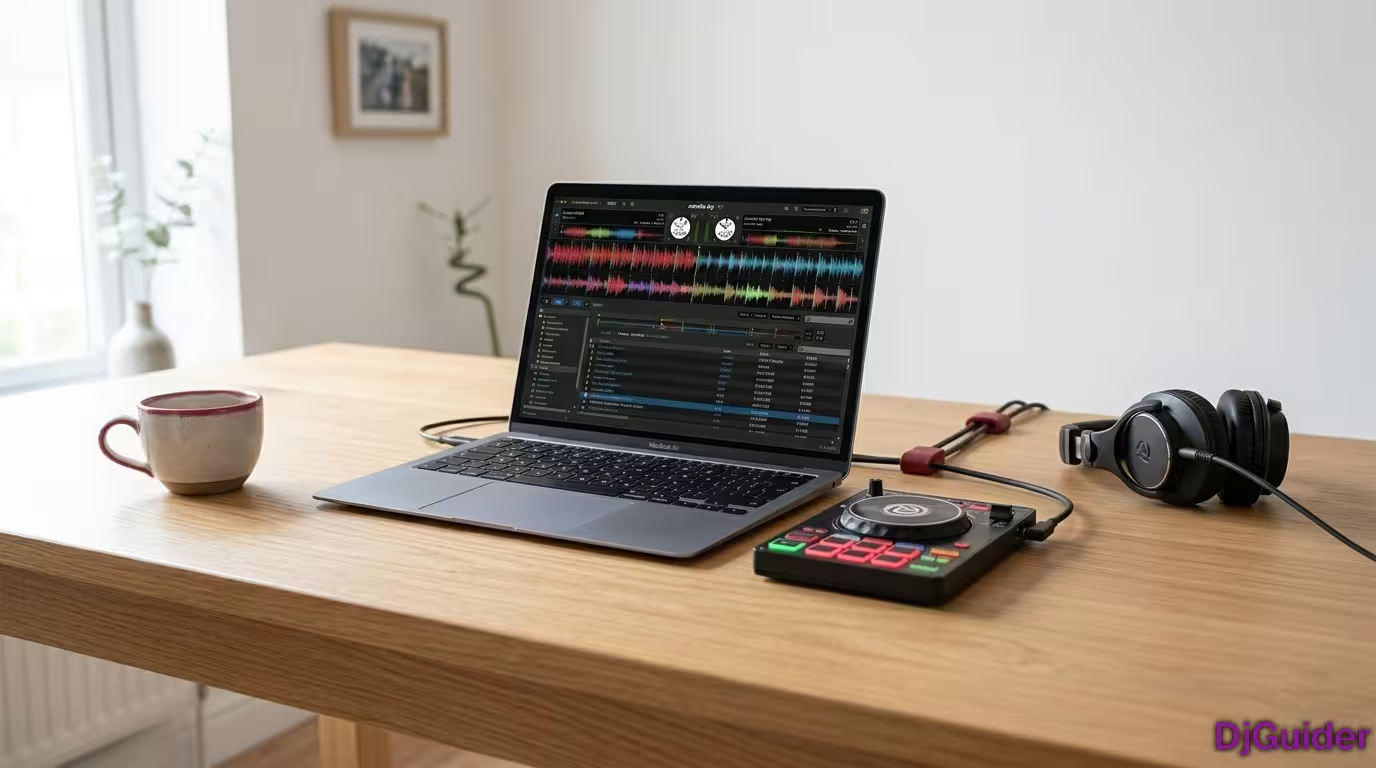
You can start DJing with just a laptop and the right software. This guide covers:
- Essential Gear: Laptop, mixer, turntables/controller, headphones, and speakers
- Software Selection: What to look for in DJ software and popular options
- Setup: How to connect everything, configure audio, and prepare for performance
- Practice Tips: How to build your skills and prepare for your first gig
If you're a DJ, then you know that the key to success is preparation. You need to know all of your equipment and software, as well as how to configure them so that they work together seamlessly. There are many different ways of doing this, but one of the easiest ways is by using a laptop and its built-in programs.
1. Get a Laptop
You will need a laptop to DJ on. The best laptops have powerful processors and high-quality screens, keyboards, and trackpads. They also have a long battery life so you can bring them with you wherever you go!
If your DJ software is not compatible with your computer's operating system, then installing the latest version of the OS will help make sure everything runs smoothly at all times.
What to Look for in a DJ Laptop
| Feature | Why It Matters |
|---|---|
| Powerful processor | Runs DJ software without lag or crashing |
| High-quality screen | See all your software controls clearly |
| Solid-state hard drive | Faster loading times and more reliable than HDDs |
| 8GB+ RAM | Smooth multitasking with DJ software and music library |
| Long battery life | Essential for mobile DJ gigs |
| Multiple USB ports | Connect controllers, audio interfaces, and storage |
Use a laptop with a solid-state hard drive. Hard drives can be lost, broken, or destroyed. An SSD is faster, more reliable, and won't skip when you're moving the laptop during a gig.
2. Get a Mixer
The mixer is the most important part of your DJ setup. It's what allows you to mix the music together, so you can create new tracks from scratch or simply change the volume of each instrument in a song on top of what's already playing.
You'll need at least three things: a laptop connected to turntables and speakers, an external mixer, and headphones for monitoring your mixes.
| Component | Purpose |
|---|---|
| Channel faders | Control volume of each audio source |
| EQ controls | Adjust bass, mid, and treble frequencies |
| Crossfader | Smoothly transition between audio sources |
| Input channels | Connect turntables, CD players, and microphones |
3. Get a Pair of Turntables (or a Controller)
You'll need a way to play and control your music. Traditional DJs use turntables, but modern DJs often use a DJ controller instead.
| Option | Pros | Cons |
|---|---|---|
| Turntables | Classic feel, vinyl control, authentic experience | Expensive, bulky, requires vinyl records |
| DJ Controller | All-in-one, portable, USB connection to laptop | Different feel from vinyl, software-dependent |
| CD Players | Digital control, precise track selection | Limited to CDs, less popular now |
A DJ controller can be used in place of a mixer and turntables. It's an electronic device that allows you to mix music without needing additional equipment. For beginners starting with a laptop, a controller is the most practical and affordable option.
4. Choose the Right Software
When you're looking for the right DJ software, consider a few things:
| Factor | What to Ask Yourself |
|---|---|
| Ease of use | Can you start playing music without technical knowledge? |
| Compatibility | Does it work with your laptop and equipment? |
| Features | Does it have the effects, looping, and library tools you need? |
| Price | Is it within your budget? Are there free versions to try? |
Make sure whatever software you choose is compatible with all the equipment in your setup. If it's not compatible, there's no point in using it — you'll have wasted money on something useless!
Popular DJ Software for Beginners
| Software | Best For | Key Features | Price |
|---|---|---|---|
| Serato DJ Lite | Beginners getting started | Easy interface, free, works with many controllers | Free |
| Virtual DJ | All skill levels | Effects, samples, video mixing | Free/Pro versions |
| Traktor Pro | Electronic music DJs | Loop recording, live effects, advanced mapping | Paid |
| Rekordbox | Pioneer ecosystem users | Library management, cloud sync, performance mode | Free/Paid tiers |
Look for DJ software that makes it easy to start playing without needing too much technical knowledge. Most programs offer free trials — take advantage of them to find what works best for you.
5. Connect Your Equipment
Once you have your gear, it's time to set everything up:
- Connect the turntables or controller to the mixer — Use RCA cables for turntables, USB for controllers
- Connect the mixer to your laptop — Usually via USB for digital controllers or audio interface
- Connect your speakers to the mixer — Use the master output (XLR or RCA)
- Plug in your headphones — Use the headphone output on the mixer or controller
- Select the media player on your laptop — Open your DJ software
- Play a song and adjust the volume — Use the mixer channel faders to control levels
- Use the crossfader — Fade between songs to practice transitions
Select a song → Set a cue point at the first beat → Hit play → Adjust volume with the channel fader → Use the crossfader to bring it in → Adjust EQ to blend with the playing track.
6. Configure Your Audio Settings
| Setting | What to Do |
|---|---|
| Audio device | Select your controller or audio interface as the output device |
| Sample rate | 44100 Hz (CD quality) is standard for DJing |
| Buffer size | Lower = less latency, higher = more stability. Start at 256 or 512 |
| Master output | Set to your main speakers |
| Headphone output | Assign to your cue channel |
| Sync mode | Disable auto-sync while learning manual beatmatching |
If your audio buffer is too low for your laptop's processing power, you'll get crackling and pops. If it's too high, you'll hear a delay between moving a fader and hearing the result. Find the sweet spot for your setup.
7. Practice and Prepare
The first step is practicing your mixes. Make sure you have all the equipment necessary and know how to use everything properly.
- Practice with the same gear you'll perform with
- Build a library of practiced tracks
- Create playlists by key and BPM
- Record your practice sessions to identify areas for improvement
8. Tips and Tricks
| Tip | Why It Helps |
|---|---|
| Use a laptop with a large screen | Easier on your eyes during long gigs |
| Use an SSD | Faster boot times, more reliable than HDDs |
| Have at least 8GB of RAM | Improves performance and speed |
| Back up your music library | Protect your collection with external drives or cloud storage |
| Learn keyboard shortcuts | Speed up your workflow |
| Keep your laptop charged | Always have the power adapter nearby |
Always have a backup plan. Bring an extra USB cable, know how to troubleshoot audio dropout, and have a phone or tablet with a backup playlist ready in case your laptop fails mid-gig.
Conclusion
Now that you're equipped with all the basics, it's time to get out there and start DJing!
| Item | Purpose |
|---|---|
| Laptop | Runs DJ software, stores your music |
| DJ Software | Mixes and controls your tracks |
| Mixer or Controller | Physical control of volume, EQ, and transitions |
| Headphones | Cue and monitor your next track |
| Speakers | Hear your mix (and let the audience hear it too) |
If you follow these tips, you can make sure that even on a budget, your next gig will be a huge success. Good luck!