
Table of Contents▼
In This Article
- Part 1: How to Fix Humming in Your Sound System — A Simple Tip Most DJs Miss
- The Hidden Cause of Humming in DJ and Audio Setups
- The Fix: Move Your Power Adapter Away From Your Mixer or Controller
- Hum Fix Quick Reference
- Part 2: How to Fix the Loud Noise When Plugging In Your DJ Controller
- The Problem: A Loud Noise on Startup That Looks Like a Sound Card Issue
- What Happened Next: Two Controllers, Same Problem
- The Real Cause: A Serato Audio Output Setting
- The Fix: Uncheck Laptop Speakers in Serato Settings
- Serato Startup Noise Fix Reference
- Part 3: Balanced vs Unbalanced Cables — The Home Studio Mistake That's Killing Your Sound
- What Are Unbalanced Cables and When Should You Use Them
- The Unbalanced Cable Mistake That Caused Hum, Crackling, and Buzzing
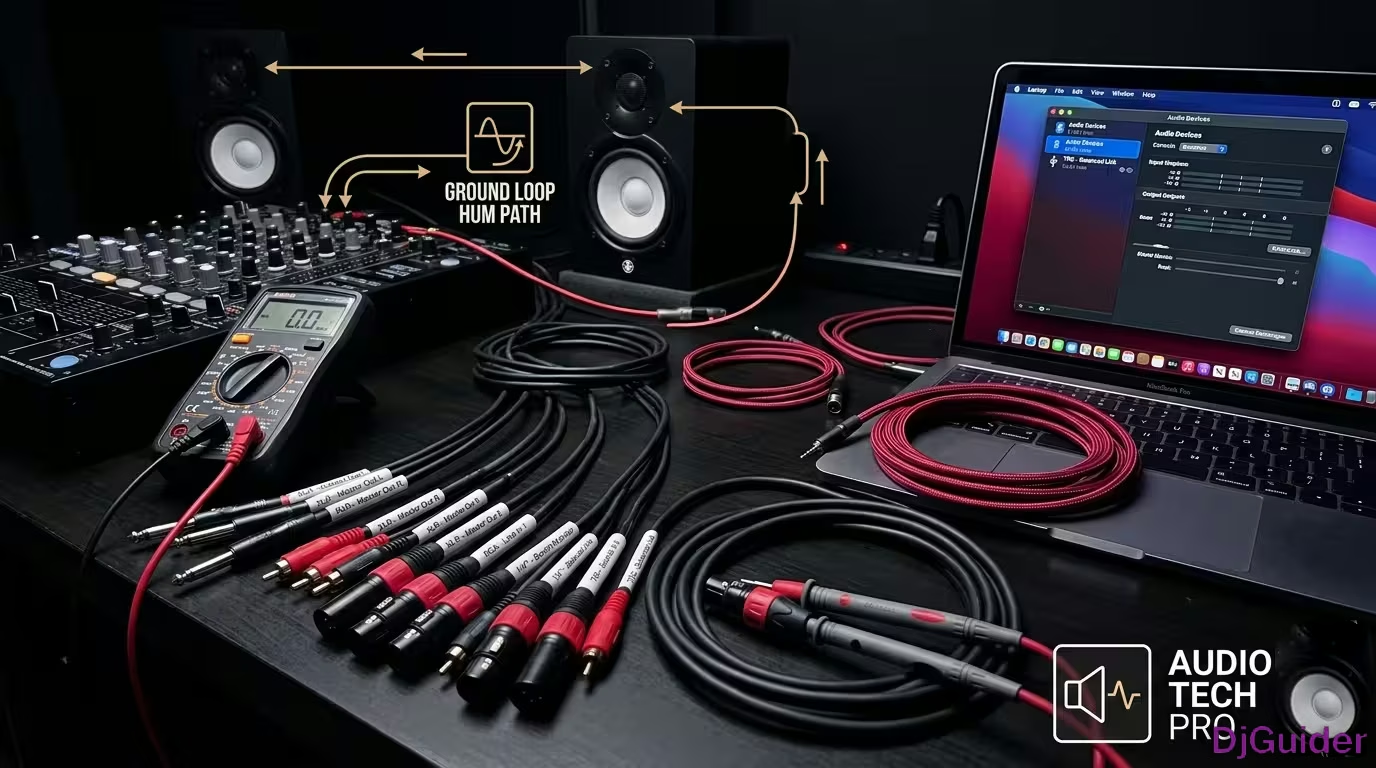
- What Is a Balanced Cable and How Does It Cancel Noise
- When You Need Balanced Cables in Your Home Studio
- Balanced vs Unbalanced Cable Comparison
- Part 4: DDJ SX3 Freezing and Dropout Fix — Move Your Phone Away from the Controller
- Why the DDJ SX3 Freezes and How to Fix It
- How Your Phone Is Causing the Dropout
- The Exact Fix to Stop the Freezing
- Phone Interference Fix Reference
- Quick Reference: Which Fix for Which Symptom
- Prevention: How to Avoid These Problems Before They Happen
- Summary: All Audio Fixes at a Glance
DJ Audio Troubleshooting Complete Guide: Fix Hum, Crackling, Freezing & Bad Sound
Four common audio problems that drive DJs crazy — and the surprisingly simple fixes that most people miss.
Every DJ has been there. You're setting up, doing a sound check, and something is wrong. Hum. Crackling. A loud noise when you plug in. Your controller freezing mid-set.
These problems look like hardware failures. They feel like hardware failures. But almost every time, the fix is something far simpler than you think — and this guide covers all of them.
Before you replace any hardware, try the software fix first. Before you buy a new cable, try moving things around. Before you send your controller in for service, check your phone. Nine times out of ten, the problem is simpler than it seems. DJ gear is remarkably reliable — it's the setup and environment that cause most issues.
Part 1: How to Fix Humming in Your Sound System — A Simple Tip Most DJs Miss
If you have humming in your sound system and you've already checked all your cables, the problem might be something far simpler than you think.
Most people's first instinct is to check their cables and make sure everything is properly connected. That is a good way to find humming caused by a bad cable. But what if you've checked all your cables and power lines and everything else and you still cannot find where the humming is coming from?
Before diving into complex fixes, run through this checklist in order: 1) Check all cables and connections — a loose or bad cable is the most common cause. 2) Check power lines — crossed or damaged power lines can introduce hum. 3) Move your power adapter away from your mixer or controller. The third step is the one most people miss, and it solves more humming issues than any other fix.
The Hidden Cause of Humming in DJ and Audio Setups
Sometimes the humming has nothing to do with your cables at all — it's about where your power adapter is physically sitting.
That can drive you crazy. The audio will play, but you will still be thinking about that humming in the background. It can be from anything, but here is a simple tip.
Here's the setup: a laptop, a plug, and the adapter part of the plug sitting right next to the mixer. Sometimes you have your setup and you try to do everything nice and clean, and you put your adapter near the controller or mixer or somewhere close to it.
But guess what — that right there is a big problem. That is what is causing the humming.
The Fix: Move Your Power Adapter Away From Your Mixer or Controller
As soon as the adapter is moved away from the mixer, the humming is gone immediately — problem solved.
So be careful how you lay your power lines and adapters running across things. Something as simple as this can be a big headache.
Even a neatly arranged setup can cause humming if your power adapter is sitting too close to your mixer or controller. Always keep adapters physically separated from your audio gear. The electromagnetic field from the adapter can introduce hum into nearby audio equipment even when everything is plugged in perfectly.
Hum Fix Quick Reference
| Step | What to Check | Why It Matters |
|---|---|---|
| 1 | Check all cables and connections | A loose or bad cable is the most common cause |
| 2 | Check power lines | Crossed or damaged power lines can introduce hum |
| 3 | Move your power adapter | An adapter sitting near a mixer or controller causes hum |
Part 2: How to Fix the Loud Noise When Plugging In Your DJ Controller
This problem sounds terrifying — a loud noise when you turn up the power — but it's almost never a hardware failure.
The Problem: A Loud Noise on Startup That Looks Like a Sound Card Issue
This is a Serato settings issue — not a broken sound card — and it happens when you unplug and replug your controller without updating the audio output settings.
My main rig for DJing weddings is the DDJ-SZ2 from Pioneer. I plug into a PA deck system for my sound output.
One wedding, right before it started, I was doing my sound check. I turn up the power knob and it just gives a loud noise. I had no idea why it was making that noise.
What Happened Next: Two Controllers, Same Problem
I immediately thought my sound card was broken and went to my backup plan.
I used another controller and bought a Pioneer DJ DDJ-1000 to replace it. Because of the chip shortage, there was no sound card available — it still hasn't shipped and is on back order.
I got the 1000, continued to rock, and the same issue happened again over the weekend with the 1000. I was like, okay, am I doing something wrong? Am I blowing out these sound cards? Am I cursed?
When the exact same problem happens on two different controllers (DDJ-SZ2 and DDJ-1000), it's not a hardware fault. The common factor was the Serato software settings. This is the biggest clue that your problem is software, not hardware.
The Real Cause: A Serato Audio Output Setting
In Serato's settings there is a feature that lets you play sound directly out of your laptop speakers.
This feature has been around for a couple of releases now. It is only available when you are actually plugged into a controller.
Here is what goes wrong. If you had laptop speakers checked in Serato, then unplugged the controller and used your laptop speakers, and then went back and plugged the controller back in — that setting stays checked.
When you plug the controller back in, your sound automatically tries to play through the controller. But Serato is still saying laptop speakers. That is what causes the loud noise.
The Fix: Uncheck Laptop Speakers in Serato Settings
It is not a sound card issue — just go into Serato settings and uncheck the laptop speakers option.
I unplugged it, plugged it back in, and the setting was still checked. Once I unchecked it, the song that was playing came through cleanly. Problem solved.
This is not a hardware fault. Before replacing your sound card or your controller, check your Serato audio output settings first.
Make checking the laptop speakers setting part of your pre-gig sound check routine. Before you plug in your controller, open Serato, go to audio settings, and make sure 'Laptop Speakers' is unchecked. This takes five seconds and prevents what sounds like a catastrophic hardware failure right before you start playing.
Serato Startup Noise Fix Reference
| Issue | Cause | Fix |
|---|---|---|
| Loud noise on controller plug-in | Serato set to laptop speakers while controller is connected | Uncheck laptop speakers in Serato audio settings |
| Thought sound card was broken | Audio output mismatch between hardware and software | No hardware replacement needed |
| Problem repeated on DDJ-1000 | Same Serato setting carried over | Same fix applies to any controller |
Part 3: Balanced vs Unbalanced Cables — The Home Studio Mistake That's Killing Your Sound
Cables are one of the most common yet overlooked mistakes in DJ and home studio setups — and choosing the wrong type can ruin your sound.
There are balanced and unbalanced cables, and the difference between them is game changing.
This section might sound like it's aimed at producers, but every DJ with a controller, mixer, and speakers uses these same connections. If you've ever connected speakers to a mixer or an audio interface to monitors, you've made a cable choice — and it might be the wrong one.
What Are Unbalanced Cables and When Should You Use Them
Unbalanced cables are simple, often less expensive, and fine for short cable runs — but they come with a serious catch.
The best example of an unbalanced cable is your standard quarter-inch guitar cable with TS or tip-sleeve connectors. This cable has two conductors — one for the signal and one for the ground.
It's great for connecting your guitar to an amp that's close by. These are totally fine to use if you're just tracking a guitar input, so don't worry about that just yet.
But here's the real catch. Unbalanced cables are susceptible to noise interference, especially over longer distances. If you've got long cable runs in your studio, this is not ideal.
The Unbalanced Cable Mistake That Caused Hum, Crackling, and Buzzing
There's an even bigger mistake with unbalanced cables — one that caused constant hum and buzzing in a real home studio setup.
At a time when there was a lot of hum, crackling, and buzzing in the monitors, there was no clue what was wrong with them. Naturally, the assumption was that the monitors were just broken.
After bringing them back to the shop and testing them out there, the real culprit was humbled pretty quickly. Unbalanced cables were being used — specifically, a couple of extra guitar cables plugged between the monitors and the audio interface.
This was causing all sorts of low-level hum and noise in the monitors. If there is one place you don't want to be using the wrong cables, it's between your audio interface and your monitors.
Imagine spending all that money on some really nice monitors, only to introduce noise and interference with unbalanced cables. Monitors are designed to reproduce sound with precision, and they're also very sensitive for this reason.
Do not compromise that clarity. Give them the best signal you can with a balanced connection.
Monitors are designed to reveal every detail in your audio — including the noise you're introducing with the wrong cables. If you hear hum, crackling, or buzzing from your monitors, check your cables before you check your monitors. A $10 pair of balanced cables can make $1,000 monitors sound like they should.
What Is a Balanced Cable and How Does It Cancel Noise
A balanced cable is like the unbalanced cable's bigger, smarter brother — and how it works is super cool.
The best example is your standard XLR microphone cable or a TRS cable. This cable has three conductors — two for the signal and one for the ground — and this makes all the difference.
Balanced cables carry the exact same audio on the two signal wires, except one of the signals is phase inverted. As the cable picks up noise interference along its way, that noise affects both signal wires inside in the exact same way.
When these signals reach their destination, the phase of the second signal gets flipped back. The difference between the two wires is all that's left.
Because the noise is the thing that was the same on both wires, it gets canceled out. All that remains is your clean audio signal.
When You Need Balanced Cables in Your Home Studio
Balanced cables ensure that any interference that creeps in along the way will get nullified by the time it reaches your monitors.
While balanced cables might be a tad bit more expensive than unbalanced cables, they are an investment in crystal-clear sound. If you're tracking some guitar right next to your amp or next to your studio desk, you're going to be fine with your guitar cable.
But there are some roles in your home studio setup where you're going to want to use balanced cables — and your audio will thank you.
Go through your DJ and studio setup right now and identify every cable. Any cable running from an audio interface to monitors should be balanced (XLR or TRS). Any cable running longer than 3 metres should be balanced. Any cable in a high-interference environment (near power supplies, Wi-Fi routers, or dimmer switches) should be balanced. This five-minute audit will prevent most of your noise problems.
Balanced vs Unbalanced Cable Comparison
| Cable Type | Conductors | Noise Cancellation | Best For |
|---|---|---|---|
| Unbalanced (TS) | 2 — signal + ground | None | Guitar to nearby amp, short runs under 3 metres |
| Balanced (XLR) | 3 — two signal + ground | Yes — cancels interference | Audio interface to monitors, microphones, long runs |
| Balanced (TRS) | 3 — two signal + ground | Yes — cancels interference | Studio headphones, balanced line-level connections |
Part 4: DDJ SX3 Freezing and Dropout Fix — Move Your Phone Away from the Controller
Not all audio problems come from cables or settings. Sometimes the source is something you carry in your pocket.
Phone interference is one of the most common yet least documented causes of DJ controller problems. The RF (radio frequency) signal from a phone's Wi-Fi, 4G, or 5G antenna can interfere with the sensitive electronics inside a DJ controller, causing freezing, audio dropouts, and erratic behaviour. It's not a hardware defect — it's physics.
Why the DDJ SX3 Freezes and How to Fix It
The freezing and dropout problem on the DDJ SX3 has a surprisingly simple solution — your phone's Wi-Fi signal.
This isn't just a DDJ SX3 issue. A previous controller, the Numark four-track, had the exact same freezing problem.
The only solution to that is very easy: turn off your Wi-Fi from your phone.
How Your Phone Is Causing the Dropout
If your phone is beside or on top of the controller with Wi-Fi on, or a hotspot active, that signal is causing the dropouts.
If it's getting any signal from your Wi-Fi, 4G, or 5G, that's the one that's making the dropouts. It's not entirely clear why or how, but it was tested and confirmed.
The phone was placed at least a meter away — about a seat's distance from the controller — and it ran for three hours with no glitch, no dropouts, no problem.
The Exact Fix to Stop the Freezing
Take your phone away from the controller and make sure it is not beside or even near your laptop.
It should be far away — a meter or two meters away. That's it.
That's the only solution found to eliminate the dropout, the buzz, and the freezing.
This isn't a one-controller issue. A previous controller — the Numark four-track — had the exact same freezing problem from phone proximity. If you're experiencing intermittent dropouts, glitching, or freezing on any controller, the first thing to try is moving your phone at least 1–2 metres away. It costs nothing, takes five seconds, and solves the problem more often than you'd expect.
If this fix doesn't work for you, leave a comment — there may be another solution worth exploring together.
Phone Interference Fix Reference
| Problem | Cause | Fix |
|---|---|---|
| DDJ SX3 freezing / dropout | Phone Wi-Fi or hotspot signal near controller | Move phone at least 1–2 metres away |
| Numark four-track freezing | Same Wi-Fi interference issue | Same fix — distance the phone from the controller |
| Intermittent glitching on any controller | Phone RF interference | Turn off phone Wi-Fi/cellular or move phone away |
Quick Reference: Which Fix for Which Symptom
| Symptom | Most Likely Cause | Fix | Section |
|---|---|---|---|
| Constant humming, all connections fine | Power adapter near mixer/controller | Move power adapter away from audio gear | Part 1 |
| Hum, crackling, buzzing in monitors | Unbalanced cables between interface and monitors | Replace with balanced XLR or TRS cables | Part 3 |
| Loud noise when plugging in controller | Serato laptop speakers setting still checked | Uncheck laptop speakers in Serato audio settings | Part 2 |
| Controller freezing or dropping out mid-set | Phone Wi-Fi/hotspot signal near controller | Move phone 1–2 metres away | Part 4 |
| Intermittent crackling through speakers | Unbalanced cables in long runs | Use balanced cables for long cable runs | Part 3 |
| Problem happens on multiple controllers | Software settings, not hardware | Check Serato audio output settings first | Part 2 |
| Noise appears after rearranging setup | Power adapter or phone now near audio gear | Check adapter position and phone proximity | Part 1, Part 4 |
Prevention: How to Avoid These Problems Before They Happen
Once you've fixed your audio issues, here's how to stop them coming back.
1. Cable management matters for audio quality, not just tidiness Keep power cables physically separated from audio cables. Don't run them parallel to each other. Cross them at 90-degree angles if they must intersect.
2. Keep a known-good balanced cable set in your DJ bag Label a set of XLR or TRS cables as your "monitor cables" and don't borrow them for other uses. If hum appears mid-gig, you can swap them immediately.
3. Before every gig: check your audio settings Make it a habit. Open Serato (or your preferred software), go to audio settings, confirm the correct output device is selected, and laptop speakers are unchecked.
4. Phone placement is part of your sound check Make a conscious decision about where your phone goes when you start playing. On a table at least a metre away. Not on the controller. Not next to the laptop.
5. Label everything A power adapter can look identical to any other adapter. Label yours. Know which one goes with which device. If you're troubleshooting, you'll know exactly where your adapters are.
6. Invest in quality cables where it matters most Skimp on the cables for your headphones or your phone charger. Never skimp on the cables between your audio interface and your monitors, or between your controller and your mixer. Balanced, shielded, properly wired cables are worth the investment.
Before every gig, spend five minutes running through these checks: 1) Power on controller, then software. 2) Check audio output settings in your DJ software. 3) Confirm phone is at least 1 metre from controller. 4) Verify power adapters are away from audio gear. 5) Listen for hum before the first track plays. This five-minute routine will catch 90% of audio problems before your crowd hears them.
Summary: All Audio Fixes at a Glance
| Problem | Cause | Fix |
|---|---|---|
| Humming in sound system | Power adapter near mixer/controller | Move adapter away from audio gear |
| Loud noise on controller plug-in | Serato set to laptop speakers | Uncheck laptop speakers in settings |
| Hum/buzzing in monitors | Unbalanced cables to monitors | Replace with balanced XLR/TRS |
| Controller freezing/dropping out | Phone Wi-Fi near controller | Move phone 1–2 metres away |
| Crackling over long cable runs | Unbalanced cables | Switch to balanced cables |
Bookmark this guide. Before you replace a sound card, buy a new controller, or send gear in for repair, come back here and check if your symptom is on this list. The most expensive fix is the one you didn't need. And if you found a solution that's not covered here, share it — the DJ community is stronger when we all know what actually works.