
Table of Contents▼
In This Article
- The Types of DJs Who Need Better Music Management
- Tip 1: Automate Your Library With Serato Auto Import and Smart Crates
- Setting Up Your Auto Import Folder
- Downloading and Importing Tracks
- Setting Up Smart Crates by Genre
- Tip 2: Organise Your Hot Cues for Creative and Seamless Mixing
- Tip 3: Expand Your Music Sources Beyond the Mainstream
- Tip 4: Create Custom Crates for Different Event Types
- Tip 5: Use Cloud Storage to Sync Your Library Across Devices
- Tip 6: Avoid Downloading Ripped or Low Quality Files
- Tip 7: Utilise External Apps Like Lexicon to Enhance Music Management
- Summary: 7 Music Management Tips for DJs
The Types of DJs Who Need Better Music Management
There are a few types of DJs out there, and most of them share the same core problem: poor music organisation.
There's the DJ with too much music who has millions of songs but only really plays the same stuff. There's the messy library DJ who has random URLs in track titles and duplicates in random folders.
There's the startup DJ who overthinks genres and only rips music off YouTube and doesn't know where to set hot cues. There's the open format DJ who has to manage so many genres they just get overwhelmed — they need to declutter and could benefit from automation.
Then there's the USB DJ who only knows the basics of sync manager and their organisation has become a little bit repetitive.
- Too much music — millions of songs, plays the same stuff
- Messy library — random URLs, duplicates everywhere
- Startup DJ — overthinking genres, YouTube rips, no hot cue system
- Open format DJ — overwhelmed by genres, needs decluttering
- USB DJ — basic sync manager, repetitive organisation
Tip 1: Automate Your Library With Serato Auto Import and Smart Crates
Automating your library means downloads automatically populate your DJ software — no more dragging files into genre folders manually.
Instead of downloading 100 tracks and dragging them all into genre folders, this is all done automatically in Serato using Serato Auto Import and smart crates.
Setting Up Your Auto Import Folder
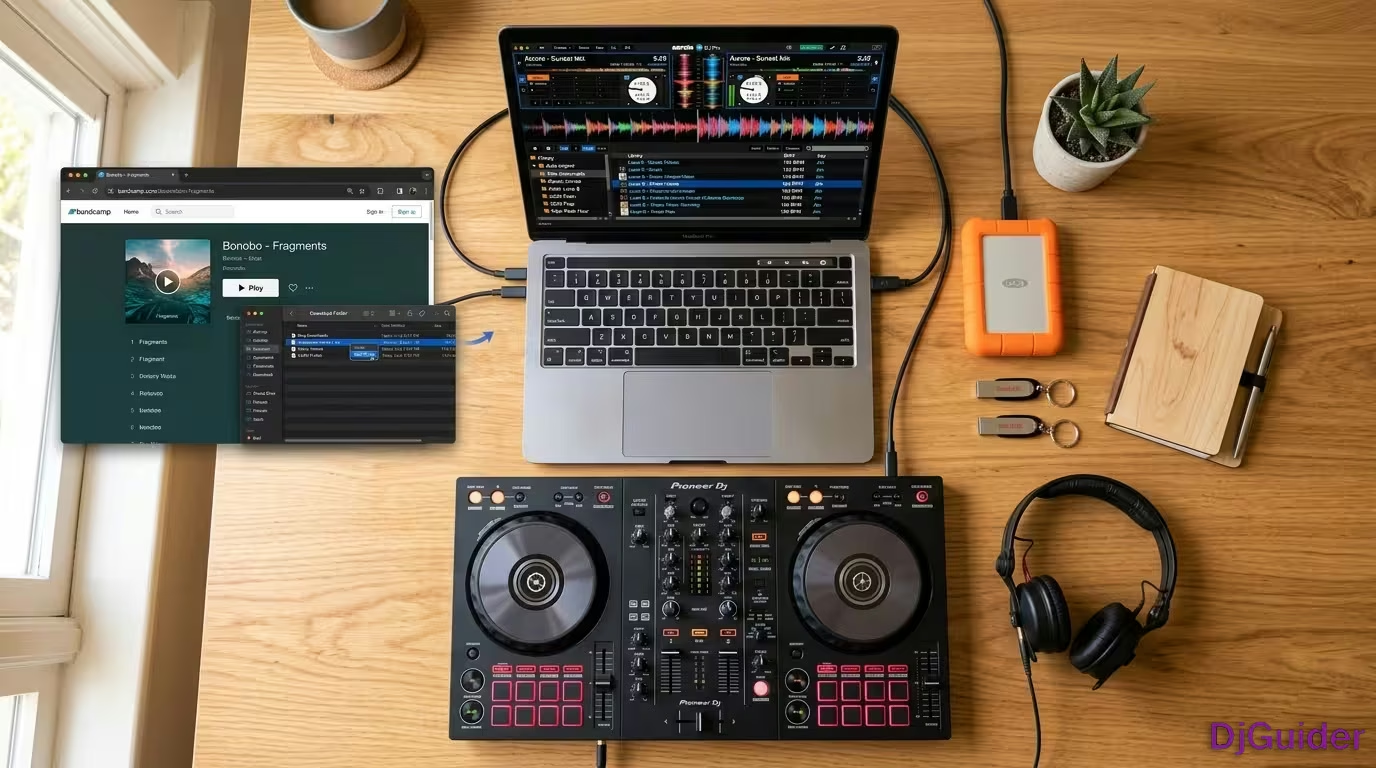
First, find where your Serato folder is stored. On Mac or Windows, go to where your music is stored — you'll see a folder called Serato. Click on that and at the top you'll see it says Auto Import. That's the folder you need to remember for setting up automatic downloading.
The next step is to use two browsers. One browser — say Chrome — would be for all your general internet browsing. The second is going to be for all your music downloading.
Use Safari just for downloading music, and there's a reason for that. Go to Safari, then go to Preferences, then under the General tab click where it says File Download Location and search for that Auto Import folder — Music > Serato > Auto Import — then click Select.
Now anything downloaded there will go into that folder. It's important to have a separate browser doing this so it doesn't download any JPEGs or videos into that folder — you're just downloading music on Safari.
If you did want to use Chrome for your auto downloads, it's a similar setup. Go to the three dots at the side, click Settings, go down to Downloads, and change the source to your Serato Auto Import folder.
Downloading and Importing Tracks
Now wherever you get your music from, it doesn't matter — because whatever is downloaded in this browser will be added to your Auto Import. That's why it's important to just download music files.
Make sure Serato is closed while you're downloading. Once the tracks are downloaded, open up Serato and you'll see a folder at the top called Latest Import — that's where all your auto downloads live.
It's taking away that step of having to download and then physically drag all the files into your crates, saving a lot of time.
Setting Up Smart Crates by Genre
To take it a step further, use smart crates to automatically put tracks into genre-specific folders. Click on the little blue folder icon, then click Add Rule.
A good record pool usually has the metadata, so tracks will download with genres already embedded — House, Pop, Rock, Dance, Hip-Hop. Click on Genre, type in your genre such as House, then click Save.
Without having to do anything, your smart crate picks up that these are house tracks and puts them into your house folder. You can get as specific as you want with your rules in your smart crate, but this is just a very simple way to do it.
Set your music browser's download folder to _Serato > Auto Import. Use a separate browser just for music downloads. Open Serato and tracks appear under Latest Import. Smart crates auto-sort by genre. Saves hours of manual dragging and dropping.
Unfortunately this system doesn't work with Rekordbox, but it does work with Traktor and Virtual DJ.
Tip 2: Organise Your Hot Cues for Creative and Seamless Mixing
Hot cues are essential for seamless and creative DJ sets — take the time to organise them with consistent cue points for intros, outros, and drops.
Here's another way to think about your hot cues differently. On a controller with access to eight hot cues, the top layer can hold your standard markers: your intro at the beginning, where the drums come in, the drop, and your outro.
The bottom layer is worth reserving for creative parts of the track — sometimes acapellas at different pitches. It allows you to get creative when mixing and use those moments during transitions.
Here's another idea for setting things up differently. On the top layer, mark the different parts of the track that are interesting — the main drop, where the synth comes in, a different synth variation, and the outro section.
On the bottom layer, set up memory cues so you can live remix on the fly — a four-beat loop, a bass and drums variation, a vocal section. As you're live remixing, you can jump between these creatively.
It's just a different way to think about and organise your hot cues.
- Top layer (standard) — intro, drums in, drop, outro
- Bottom layer (creative) — acapella at different pitch, 4-beat loop, bass + drums, vocal section
- Why — top for structure, bottom for live remixing and creative transitions
| Layer | Button 1 | Button 2 | Button 3 | Button 4 |
|---|---|---|---|---|
| Top (Standard) | Intro | Drums in | Drop | Outro |
| Bottom (Creative) | Acapella | 4-beat loop | Bass + drums | Vocal section |
Tip 3: Expand Your Music Sources Beyond the Mainstream
Good music management starts at the source — diversify beyond mainstream platforms to keep your sets fresh and exciting.
While all the popular music pools offer excellent selection, you might want to consider signing up for a mailing list or finding awesome edits on Bandcamp or SoundCloud. These offer a unique way to discover new sounds.
Here's a tip for using Bandcamp to find tracks you love. Bandcamp's search function isn't that great, but if you find a producer you like, click on one of their tracks, then scroll down to Supported By.
These are all the people who have bought that track. The chances are most of these people are going to have similar music taste to you, and these accounts will often favourite their favourite tracks to either purchase later or buy straight away.
Click on one of these accounts and scroll down to their wish list or collection. You'll probably come across pretty quickly some tracks that you like. That's just a quick way of using someone else's wish list to find music you love quickly.
Find a producer you like, click a track, scroll to Supported By, click those accounts, and browse their wish lists. These people have similar taste to you and you'll discover new tracks fast.
Tip 4: Create Custom Crates for Different Event Types
Adaptability is crucial for any DJ — create custom crates or playlists for the types of events you frequently perform at.
Most DJs organise by genre only, but what about the type of event — weddings, corporate, seasonal? You can even take it a step further and organise your tracks based on energy levels or moods.
This will allow you to find suitable tracks for different occasions and settings.
- Weddings — first dance, dinner, party sets
- Corporate — background, networking, peak energy
- Seasonal — Christmas, summer, Halloween
- Energy level — low, medium, high, peak
- Mood — chill, uplifting, dark, euphoric
Tip 5: Use Cloud Storage to Sync Your Library Across Devices
Cloud storage services like Dropbox or Rekordbox Cloud Library Sync let you seamlessly sync your music collection across multiple devices.
Rekordbox Library Sync is such an underused function for Rekordbox DJs. You can literally manage your music from your phone — set up your hot cues and it syncs straight back to your Rekordbox library.
Rekordbox Cloud Library Sync is hugely underused. You can manage your music from your phone — set up hot cues on the go and it syncs straight back to your Rekordbox library.
Tip 6: Avoid Downloading Ripped or Low Quality Files
Downloading ripped files or low quality files can negatively impact your DJ sets' sound quality and professionalism.
It also takes ages to rename all the random metadata attached. SoundCloud and mailing lists are your best bet for free music.
Downloading ripped files or low quality MP3s negatively impacts your DJ sets' sound quality and professionalism. It also takes ages to rename random metadata. Stick to SoundCloud and mailing lists for free music.
Tip 7: Utilise External Apps Like Lexicon to Enhance Music Management
Use specialist DJ apps like Lexicon or Soundies to enhance your music management experience.
With Lexicon DJ you can manage your entire library, create bulk actions for decluttering, and retarget files. You can transfer your whole music library from one DJ software to another in seconds.
Lexicon DJ lets you manage your entire library, create bulk actions for decluttering, retarget files, and transfer your whole music library from one DJ software to another in seconds.
Summary: 7 Music Management Tips for DJs
| Tip | Key Method | Best For |
|---|---|---|
| 1. Automate Your Library | Serato Auto Import + Smart Crates | All DJ software users except Rekordbox |
| 2. Organise Hot Cues | Top layer for structure, bottom for creative remixing | Any controller with 8 hot cues |
| 3. Expand Music Sources | Bandcamp wish lists, SoundCloud, mailing lists | Finding unique edits and new sounds |
| 4. Custom Event Crates | Organise by event type, energy level, mood | Wedding, corporate, open format DJs |
| 5. Cloud Storage | Rekordbox Cloud Library Sync, Dropbox | Multi-device library management |
| 6. Avoid Ripped Files | Use SoundCloud and mailing lists for free music | Maintaining sound quality |
| 7. External Apps | Lexicon DJ for bulk actions and library transfers | Decluttering and switching DJ software |